New in Bookadoro Book Clubs: Reading Notes, Polls, Events and More
Bookadoro book clubs now have a Notes tab with every member's reading notes in page order, spoiler notes that unlock once you've read that far, polls to pick the next book, events with a reading goal, comments and photos on reading sessions, and clubs on the web. All of it is free.
A book club usually meets once a month, but the reading happens on all the other days. That's where a group quietly drifts apart: one person races ahead, another stalls at chapter three, and nobody wants to post a thought in the group chat in case it spoils the book for someone. Over the past few weeks we've added a lot to book clubs in Bookadoro to help with exactly that stretch. Here's everything that's new.
Why reading together in an app works
A club works when everyone can see that the others are reading too. In a group chat that takes effort: someone has to ask "how far is everyone?", and the answers are a week old by the next meeting. In Bookadoro each member reads with the reading timer, and every session they finish lands in the club with their page, time and progress. The accountability takes care of itself, and the conversation can sit right next to the reading it's about.
The new features build on that: places to leave thoughts as you read, without spoiling anyone; a way to make club decisions and plan get-togethers; and less tapping between the club and your timer. If you're new here, the Bookadoro book club app page has the basics.
Reading notes and spoilers
Notes on your reading sessions
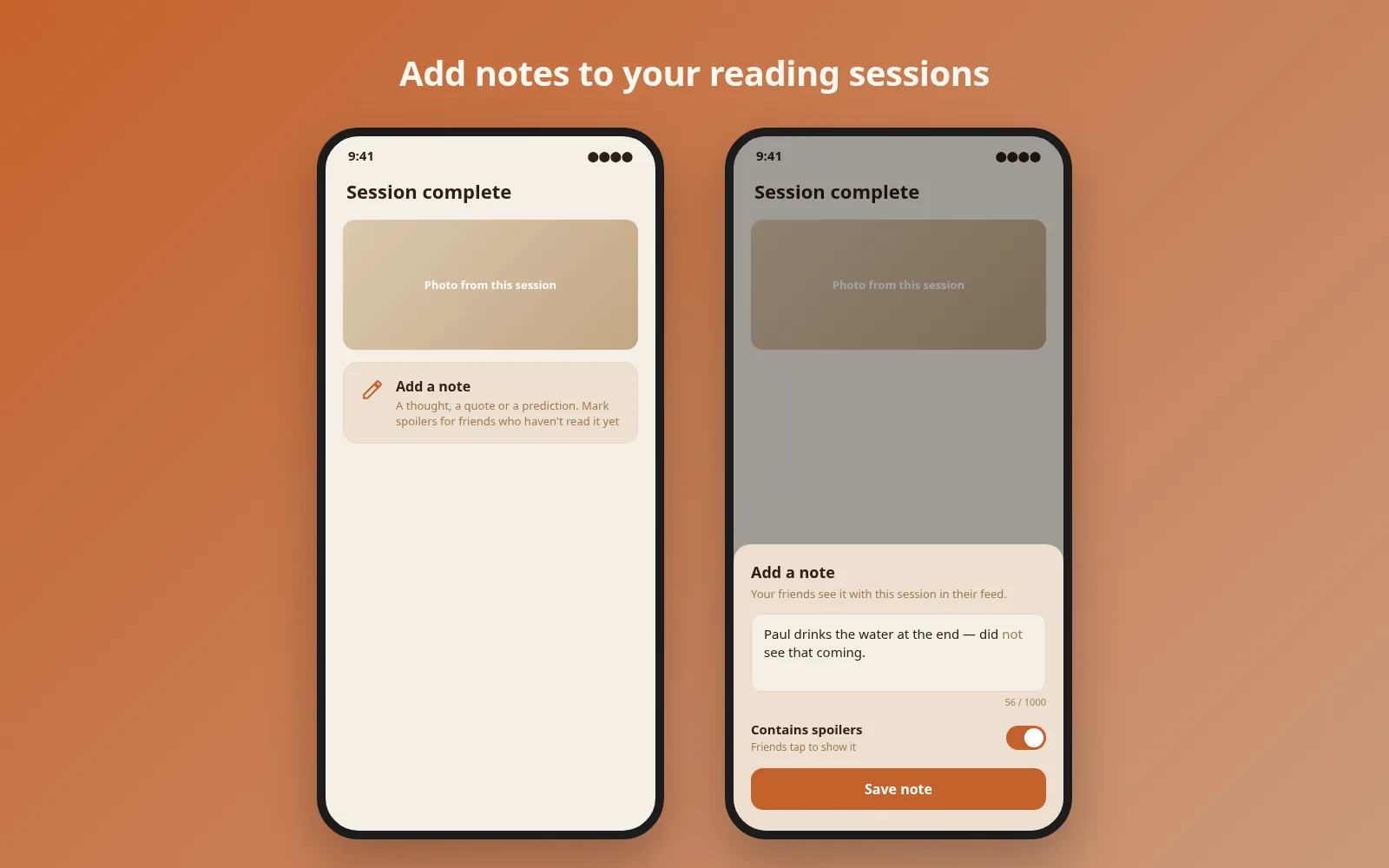
When you finish a reading session, the Session Complete screen now has an Add a note card. Jot down a thought, a favourite line or a prediction while it's fresh, up to 1,000 characters. Turn on Contains spoilers if it gives something away. You can add, edit or remove a note later from that session in the book's reading history, and your notes show on the session's card for your friends and your club.
The Club Notes tab: everyone's notes along the book
Every club now has a Notes tab that gathers all members' notes on the club's book into one timeline. It's ordered by where in the book each note was written, not by when: a thought from chapter two sits above one from chapter nine, whoever posted first. It reads a bit like a margin full of your friends' comments.
- A You're here marker shows where you are in the book, between the notes you've read past and the ones still ahead of you.
- The header shows the book, who has written notes so far and how many there are.
- Like and comment on a note just as you would on the session it came from; it all shows up on that session's card in the club and the friends feed too.
- If your club has read more than one book together, a row of chips switches between each book's notes.
Spoiler notes that unlock as you catch up
A note marked as a spoiler stays covered for anyone who hasn't read that far yet. The cover says where it opens, for example "Opens at 45% (you're at 30%)", and once your own progress in that book reaches that point, the note opens by itself with the label "Spoiler · you've read this far". If you don't mind a peek, you can still tap to show it early.
Progress is compared as a share of the book, so it works even when members read different editions. Your own notes always show in full. Spoiler notes unlock this way on the Notes tab, in club activity, on the friends feed and in the Friends Activity widget on Home.
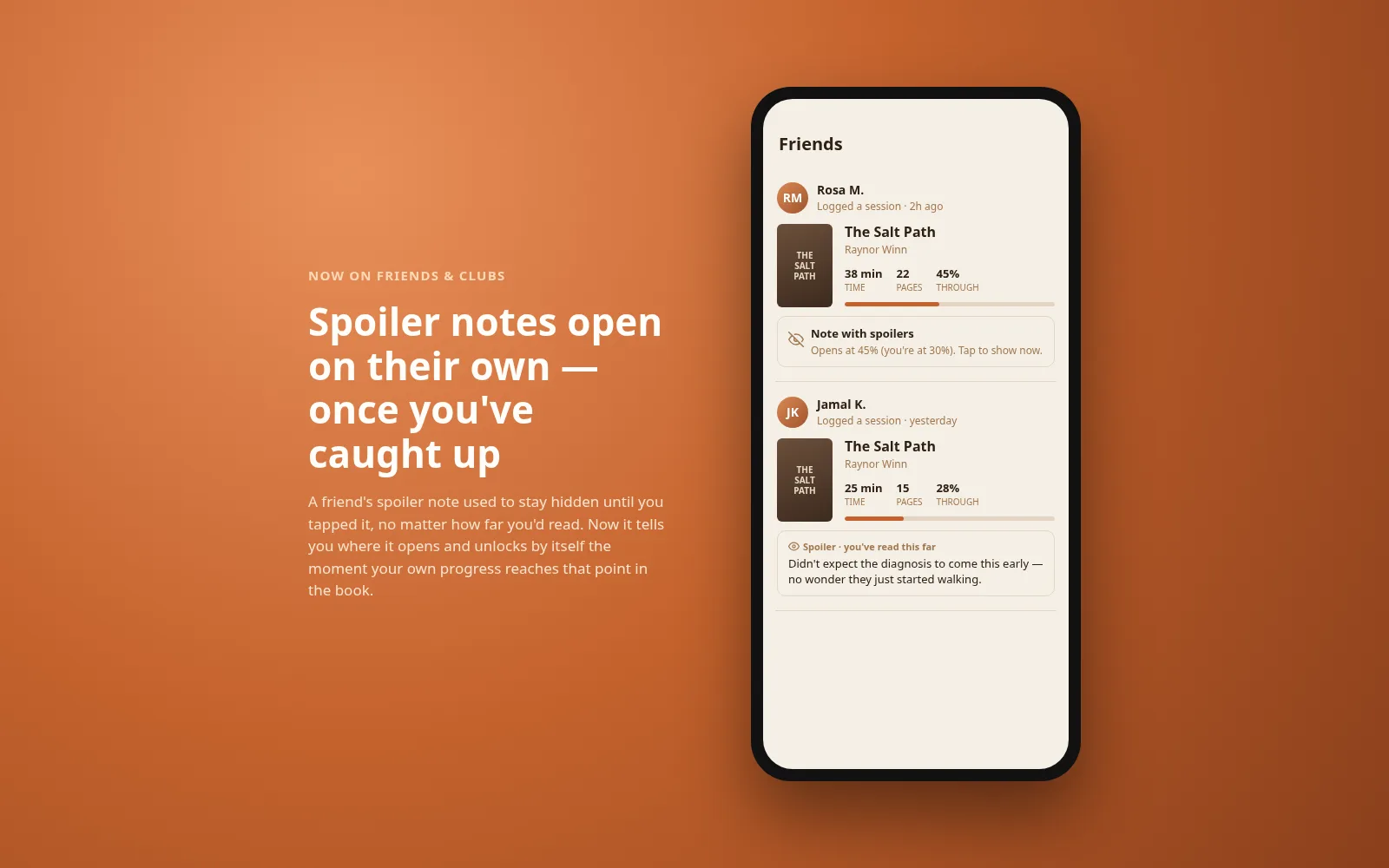
This means a fast reader can say what they think the moment they think it, and a slow reader can open the club without worrying about what they'll see.
Polls and events
Polls: vote on the next book
Picking the next book no longer needs a separate group chat. The club's host can start a poll from the new Polls tab or straight from the club's Home page, where open polls also show, so members vote where they already are.
- A poll has a question and 2 to 10 options. Type an option, or use Add a book to pick a real book from the search.
- Allow one choice or several, and close the poll in 24 hours, 3 days, a week, on a day you pick, or whenever you close it yourself.
- Members tap an option to vote and can change their vote while the poll is open. Results update live, and tapping the vote count shows who voted for what.
- When a poll closes, the winner gets a trophy. If it's a book, the host can add it to the club's Up next list in one tap.
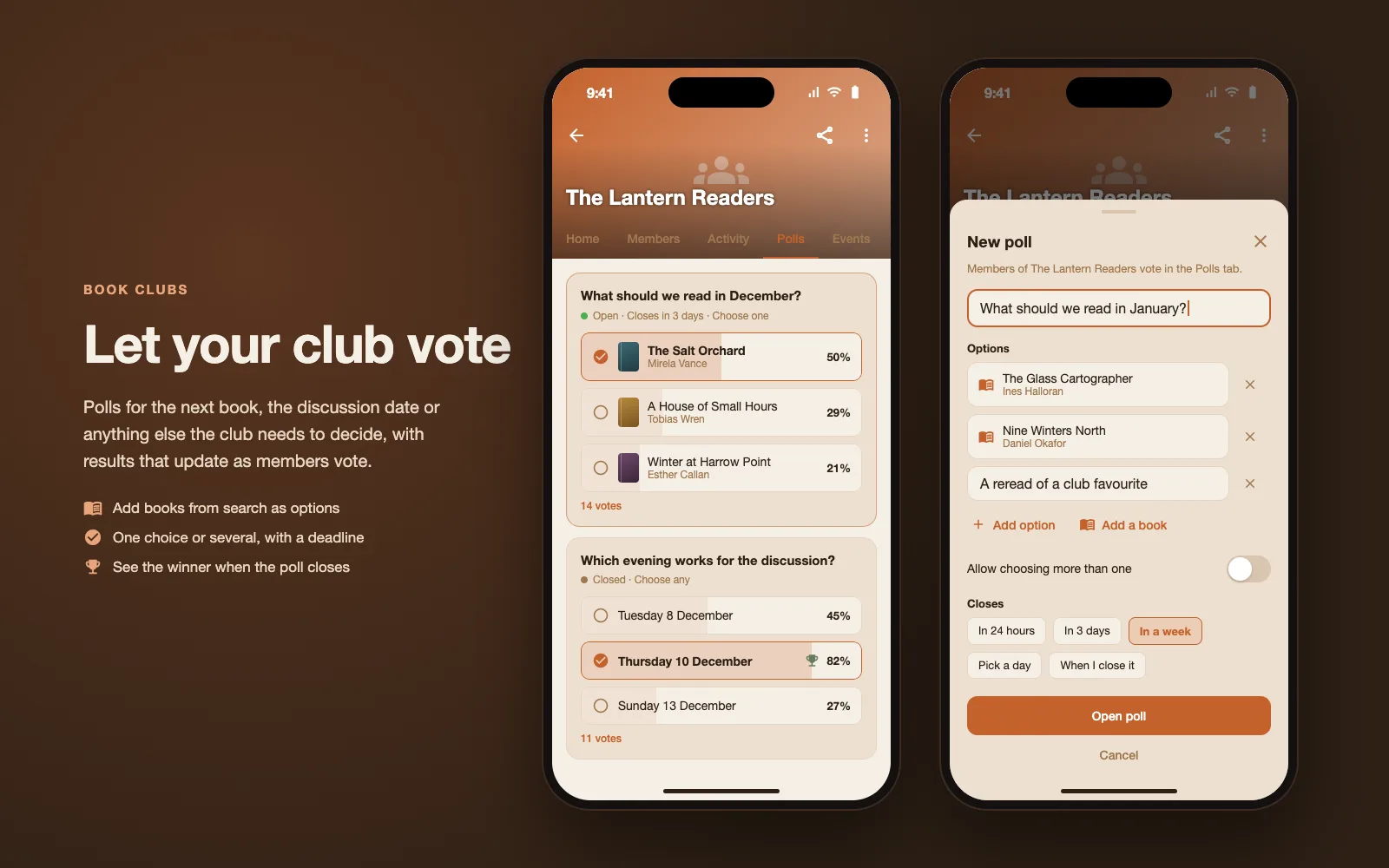
Polls aren't only for books: use them for the discussion evening, a theme for next month, or whether to do a buddy read over the holidays.
Events with a reading goal
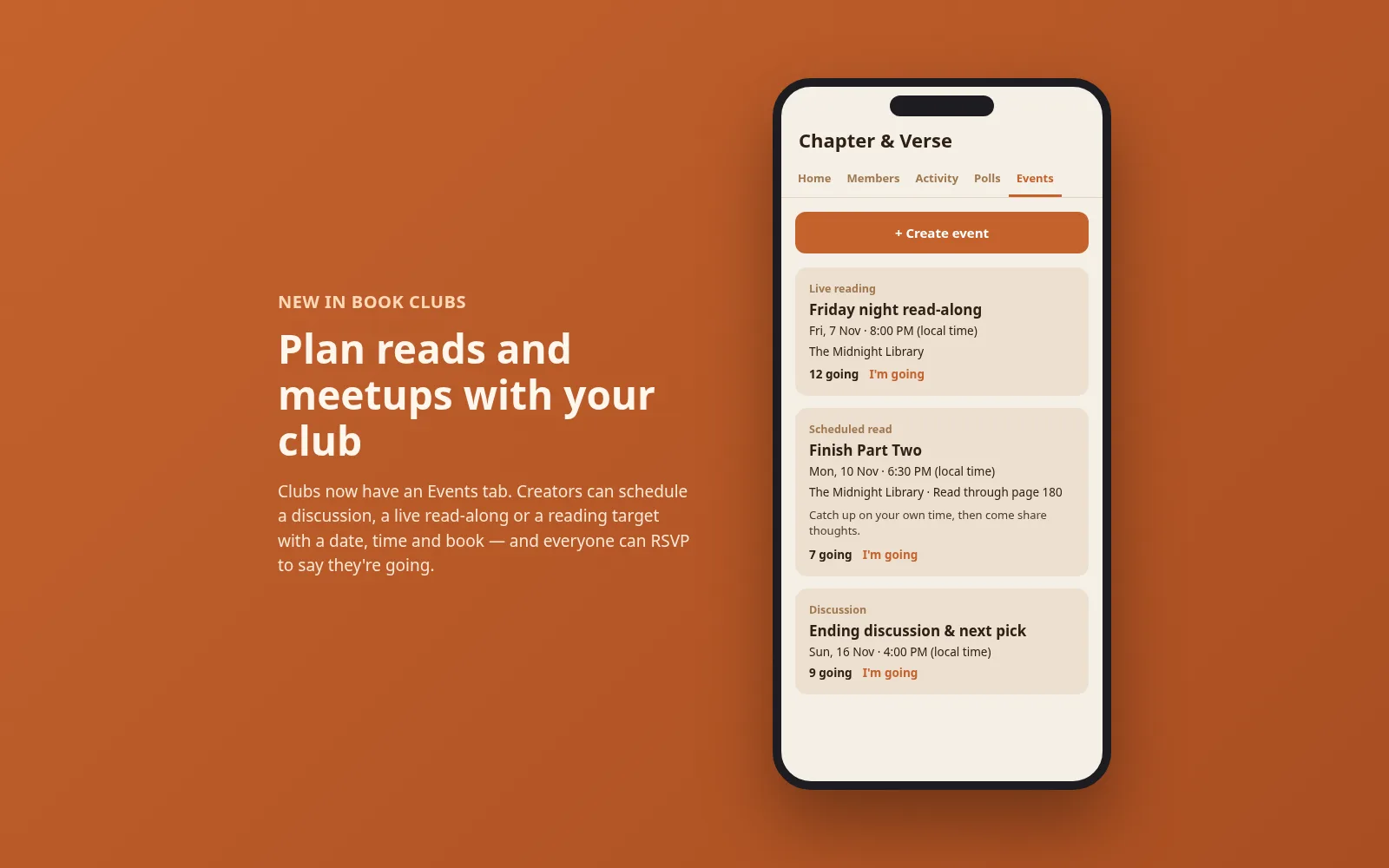
The Events tab is where the host plans what the club does together. Tap Create event and pick one of three kinds:
- Discussion: a date to talk the book through, in person or on a call.
- Live reading: read at the same time, for example in your club's voice channel.
- Scheduled read: a page to reach by a set date, like "finish part two by Monday".
Every event has a date and time, which members see in their own time zone. You can add a reading goal (the book and the page to read through by then), plus details or a meeting link. Members tap I'm going to RSVP, and the host can edit or cancel an event later. Past and cancelled events stay on the tab, so the club keeps a record of what it's done together.
For a live reading, a free Reading Sprint room puts everyone on the same timer in the browser, no app needed.
Reading together, day to day
Start a session right from the club
On the club's Home tab there's now a Start a session button under "Update my progress". It starts a normal reading session on your own copy of the club's book, without leaving the club to find it in your library. If the book isn't in your library yet, it's added as Currently reading, starting from your progress in the club rather than page one.
Activity and the leaderboard, focused on the club's book
Members read other books too, and that used to fill up the club. Now a Club book only chip on the Activity and Members tabs shows just the club's current book, and it's on by default. Activity shows only sessions and finishes of that book, and the weekly ranking counts the minutes each member spent reading it. Turn the chip off to see everyone's reading across every book again.
Comments on sessions
Kudos are great, but sometimes you want to reply. Every reading session and finished book in club activity and the friends feed now has a comment bubble next to kudos. Comments (up to 500 characters) are only visible to people who could already see the session: in a club, that's its members. The reader gets a notification, which you can turn off in Notification settings.
A photo of where you read
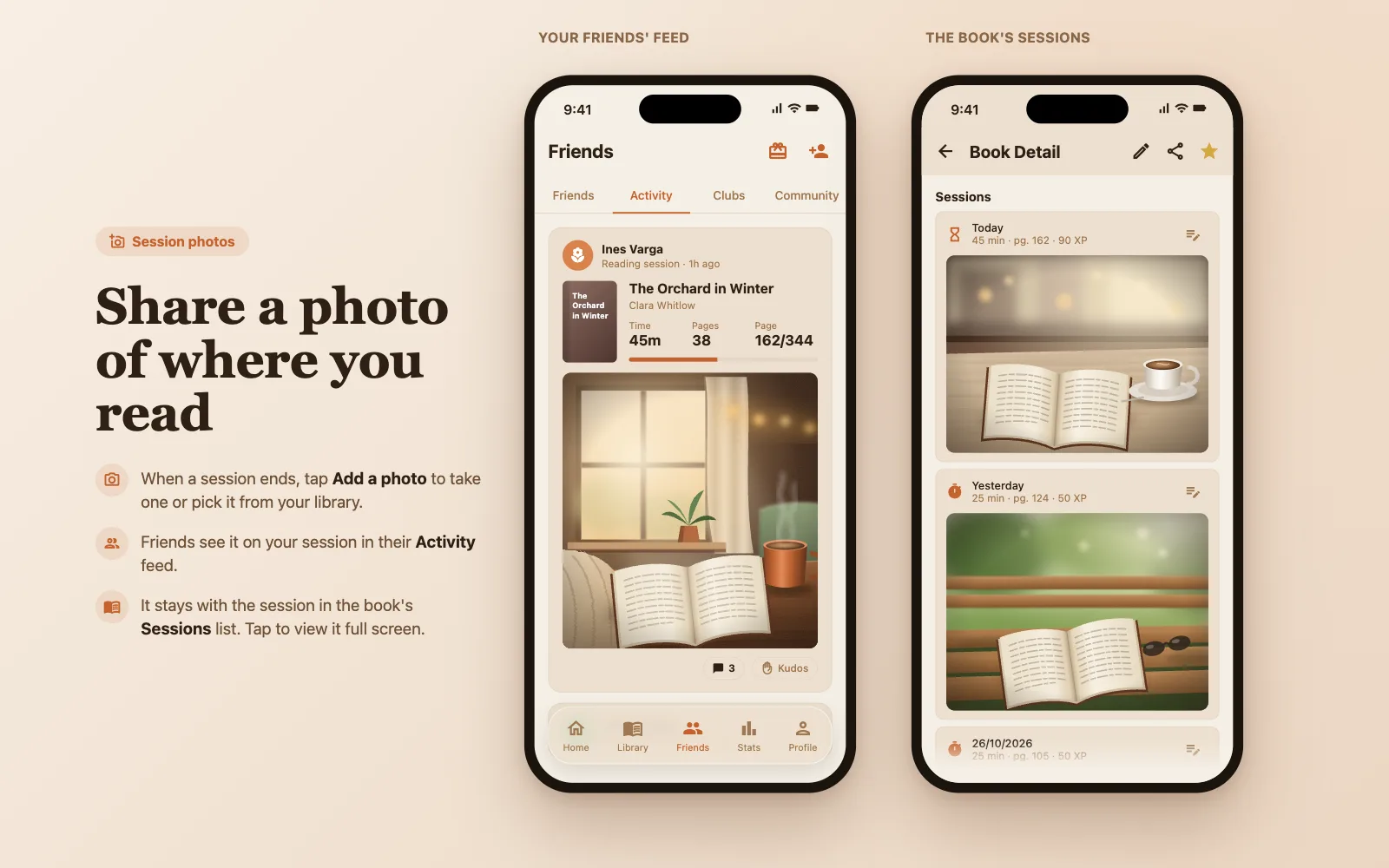
When a session ends, tap Add a photo to show where you were reading: the armchair, the café table, the train. Take one or pick one from your library. It shows on the session's card for your friends and stays with that session in the book's Sessions list. Location details are removed from the photo before it's shared.
Book clubs on the web
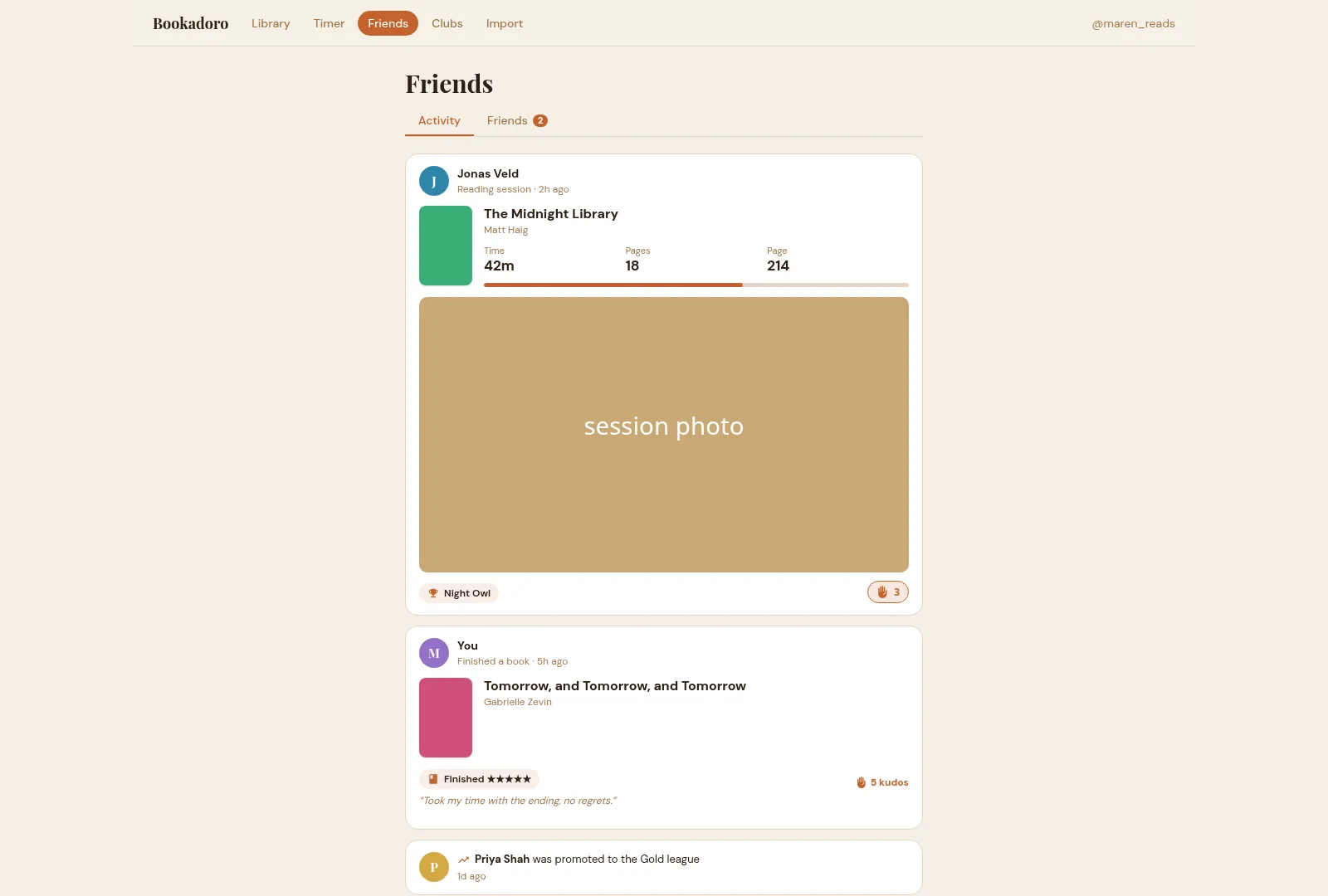
You can now sign in on bookadoro.com with the same account as the app (look for Sign in in the menu). Your library, streak and clubs are already there. In the browser you can:
- Create a club, join one with an invite code, see the club's current book with everyone's progress, and (as the host) set the book.
- Follow your friends' reading sessions, photos and finished books on the Friends feed, and give kudos.
- Run the reading timer with the same pomodoro settings as the app. A session in the browser counts toward your streak and earns XP just like one in the app.
- Update your shelves, pages and ratings.
Notes, polls, events and comments live in the app for now. If you started in the app without setting a password or linking Google, open your profile there and tap "Secure your account" first, then sign in on the web with that.
How to start a club
Setting up takes a minute:
- Download Bookadoro for iPhone or Android (it's free), or sign in on the web.
- Open Friends, go to Clubs and tap Create or join a club.
- Give it a name, then set the book you're reading first.
- Share the invite code or link in your group chat. Friends without the app are sent to the store and then straight into the club.
- Start a poll for the next book or schedule your first discussion, and start reading.
If this is your first club, our guide on how to set up your first book club covers the rest: who to invite, what to read first and how to set a pace that people keep up with.
FAQ
Are the new book club features free?
Yes. Notes, spoiler unlocking, polls, events, comments, session photos and the club book filter are all part of the free app. Plus is optional and isn't needed to run a club.
Can I post a spoiler without ruining the book for others?
Yes. Turn on "Contains spoilers" when you add a note to a session. Members who haven't reached that point see a cover that says where the note opens, and it opens by itself once they've read that far.
Who can create polls and events?
The club's host. Every member can vote in polls, see who voted for what, and RSVP to events.
Does it work if we read different editions?
Yes. Notes are placed and unlocked by how far through the book someone is as a percentage, so page numbers that differ between editions still line up.
Can I use Bookadoro book clubs on a computer?
Yes. Sign in on bookadoro.com to create or join a club, see the club's book and everyone's progress, follow the friends feed and use the reading timer. Notes, polls, events and comments are in the iPhone and Android app for now.
Start your book club in Bookadoro
Create a club, share the invite code and pick your first book together. Notes, polls and events are all free.
Download Free